
Guides · Reporting and finance
AscendTMS to LogiPilot Analyst: the export, the upload, the question, the Monday email
Updated September 20, 2026 · 11 min read
In short
Take one export from Reporting › Load Reports with the Column Layout set to Extended - Charge Types in Columns, Live, Archived and Cancelled loads included and Display All Roles ticked; a second, smaller export with the Customized Column Layout adds the actual arrival times. Upload it at Data › Upload an export; Analyst recognises the AscendTMS layout, shows what the file yields, and imports it. Ask questions in English on the Ask page, then schedule the Weekly Ops Review for Monday morning. Each week, export again with the same settings and upload; the schedule sends when the new export is in, and tells someone when it is not.
This is the path a brokerage on AscendTMS takes from a raw export to a report that arrives on its own every Monday. It was written against a real Ascend trial account and a sample brokerage in Analyst (Marrowdale Logistics, 596 loads, all invented); the screenshots are from that sample. Nothing here needs an API key, an integration or anyone from IT: two exports, one upload page, one schedule.
What you end up with
- The load history in a fixed freight data model: customers, carriers, lanes, reps, revenue and cost split by charge type, invoice and payment dates.
- A question box that answers in English with the definition, the period, the basis and the loads behind every number.
- A Weekly Ops Review in the owner’s inbox on Monday, built only after that week’s export has arrived, with a note to someone when it has not.
- A customer-safe QBR page per shipper, and internal links for the ops manager and the bookkeeper.
Step 1: export the money file from AscendTMS
Everything comes from Reporting › Load Reports (the same form is under Loads › Search Loads). Set it up once and save it with Save Report so the weekly export is two clicks.
- Date Range. For the first export, as far back as the account goes, ideally 12 to 24 months. Leave “Search by” on First Pickup Date.
- Loads to Include. Tick Live Loads, Archived Loads and Cancelled Loads. Archived is the one people miss: every invoiced load moves there after Reconcile & Archive, and an export without it has no billed loads in it. Cancelled loads are counted as cancelled, not as moved loads, so including them costs nothing.
- Display All Roles In User Role Column. Tick it. That is where the sales rep comes from: Ascend has no rep column of its own, and with this ticked the export carries every person on the load as
Sales rep: Dana Whitfieldin the Users & Roles column. - Column Layout. Choose Extended - Charge Types in Columns. This layout has every column of the Standard one plus one column per charge type and side:
Flat Rate i,Fuel e,Detention e,Lumper i, and so on (i is income, the customer side; e is expense, the carrier side). Those columns are what split revenue and cost into linehaul, fuel surcharge and accessorials. The Column Layout Preview row under it shows the columns you are about to get. - Click Export Report. The file is named
ascend_loads_export_<id>_<date and time>.csv; keep the name, because Analyst reads the export date from it.
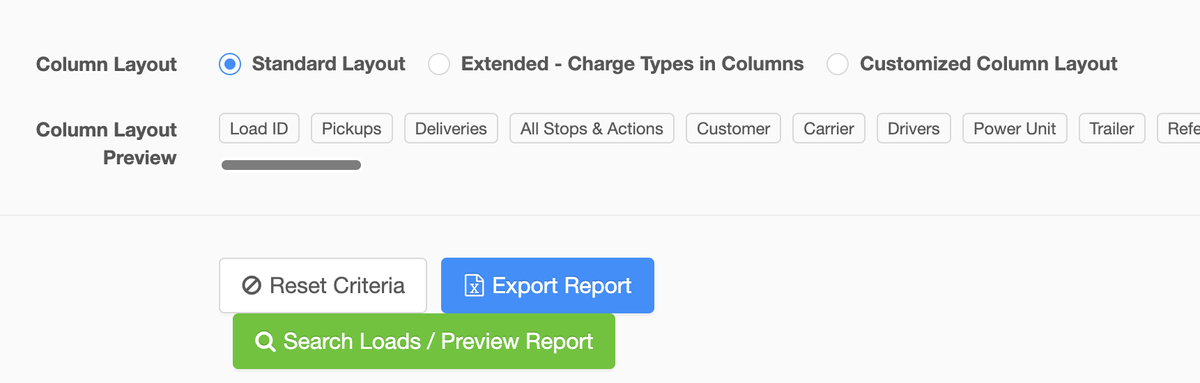
Do not fill in Load Entities, User Assignments or Branches unless you want a partial file. The report should be the whole brokerage. Export Loads Summary to Excel, above the preview grid, is a three-line totals file, not the loads.
| Setting | Value | Why |
|---|---|---|
| Date Range | 12–24 months, then “since last export” | Year-over-year from day one; re-exports restate, never duplicate |
| Loads to Include | Live + Archived + Cancelled | Invoiced loads live under Archived |
| Display All Roles | ticked | The sales rep comes from Users & Roles |
| Column Layout | Extended - Charge Types in Columns | Charge-type columns split revenue and cost |
| Button | Export Report | “Export Loads Summary” is the totals, not the loads |
Step 2 (optional): the times file for on-time metrics
The Extended layout has scheduled stop times (First Pick Date, Last Drop Date) but not the actual arrival times, so on its own it cannot say whether a load was on time. Ascend prints the actuals in two other columns, Pickup Actual Arrival Dates and Delivery Actual Arrival Dates, one entry per stop, and they only come out through the third Column Layout option.
- On the same Load Reports form, keep the date range and the Loads to Include, and choose Customized Column Layout. The page opens the customiser (the same thing the Customize Your Report button at the top of the page opens).
- In the column list, Include
Pickup Actual Arrival DatesandDelivery Actual Arrival Dates; the Departure columns are a fine fallback if a facility only records departures. KeepLoad IDandLoad Status. The Column Layout Preview shows the result; the other columns can stay or go, it makes no difference to Analyst. - Save Report under a name such as “Analyst times”, then Export Report. The result is a second, smaller file.
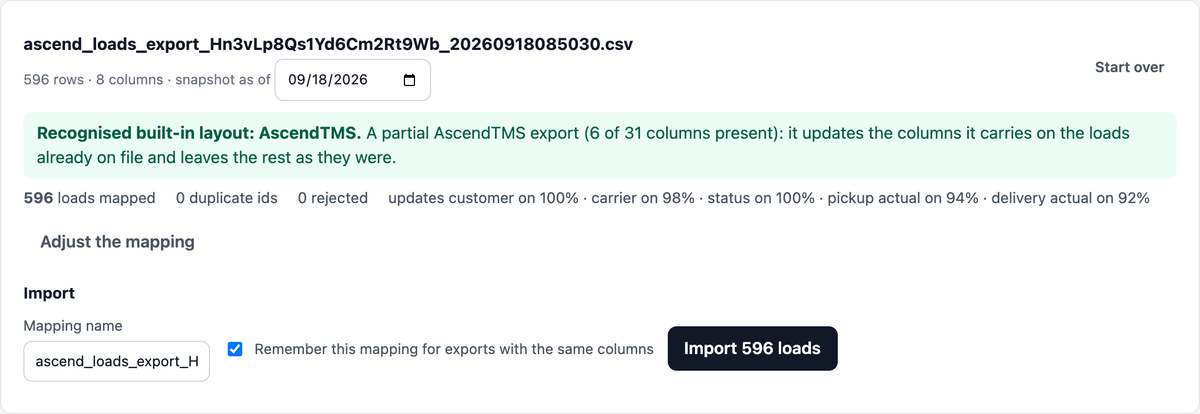
Upload it after the money file. Analyst recognises it as a partial AscendTMS export and adds the times to the loads already on file without touching anything else. Delivered loads are then counted on the day they actually arrived, and the two on-time metrics have numbers. If you skip this file, delivered loads count on their scheduled delivery date, everything else works, and the on-time metrics stay marked “not answerable” on the Data page; nothing is guessed.
Step 3: create your company in Analyst
Go to analyst.logipilot.ai, choose Create your company, and enter the company name and your work email. There is no password: the email carries a one-time link, and the company starts on a 14-day trial with no card. The first page is a four-item checklist; the first item is the upload.
Step 4: upload the money file
Open Data › Upload an export, choose the file, and check the snapshot date next to it. It is filled in from Ascend’s file name, so an export from Friday uploaded on Monday still counts as Friday’s picture of the books. Click Inspect.

Nothing is imported yet. The wizard reads the headers, recognises the AscendTMS layout and shows what the file yields: how many loads mapped, duplicates and rejected rows, and three coverage figures that decide which reports will have numbers in them.
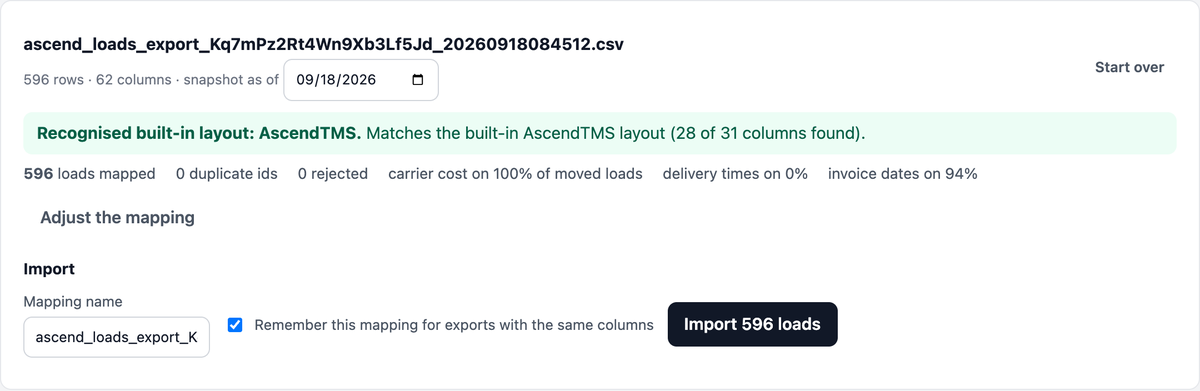
Read the three figures before importing:
- Carrier cost on 100% of moved loads. Every moved load has a carrier total. If this is low, the export is missing Total Expenses, which means the Standard or Extended layout was not used.
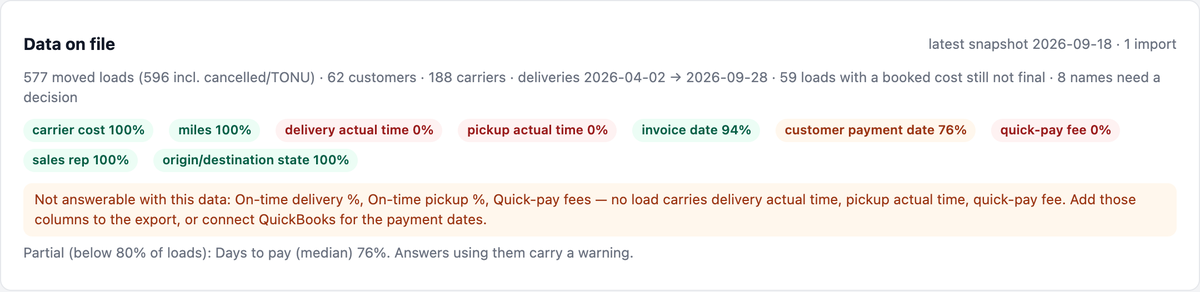
- Delivery times on 0%. Expected for the money file; it has scheduled stop times only. The times file in Step 2 raises it.
- Invoice dates on 94%. Loads that have been invoiced in Ascend’s Accounting screen. Loads invoiced elsewhere (QuickBooks, a factor) show blank here; connecting QuickBooks fills them from the books.
Adjust the mapping is there if a column was renamed; for a stock Ascend export it stays closed. Leave “Remember this mapping” ticked and click Import. A file of six hundred loads takes a few seconds.
The Data page then shows what is on file, with one chip per field and the percentage of moved loads that carry it. Red chips are the honest ones: they say which questions the current data cannot answer, and what to add to the export to change that.
Step 5: upload the times file
Same card, same steps. Because the file carries a Load ID and Ascend’s actual-arrival columns, the wizard recognises it as a partial AscendTMS export and says exactly what it will update on the loads already on file; the columns it does not carry are left as they were, and no charge detail is touched because the file has none.
After the import the Imports table shows both files against the same snapshot date, and the delivery-times column moves from 0% to 95%. On-time delivery and on-time pickup now have numbers. Loads whose stops were never marked arrived in Ascend keep counting on their scheduled date and stay out of the on-time figures; no time is ever assumed.
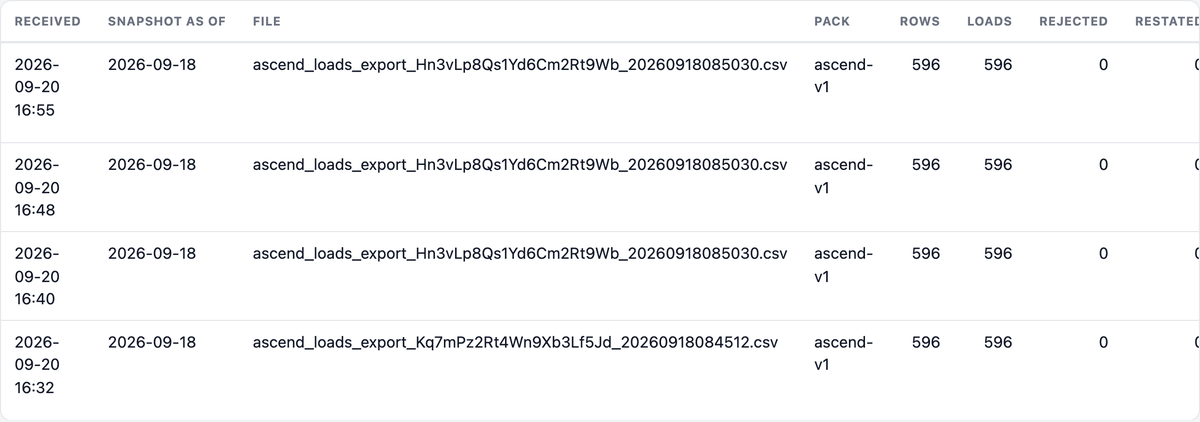
If the wrong file went in, Roll back on that row undoes it: the loads return to the previous export and the restatements it caused are removed.
Step 6: settle the names that look alike
Ascend lets a customer be typed three ways, and a TMS export carries every spelling. Analyst merges the obvious ones (punctuation, legal suffixes) on its own and lists the rest under Names that need a decision on the Data page: “Eldarcott Foods Inc” next to “ELDARCOTT Foods” with a similarity score, and nothing is merged until you say so. Do this once after the first import; later exports only raise new spellings.
Step 7: ask a question
The Ask page takes a question in English. Every answer states the assumptions it made, the period and basis it used, and links each row to the loads behind it, so a number can be checked before it is repeated in a meeting.
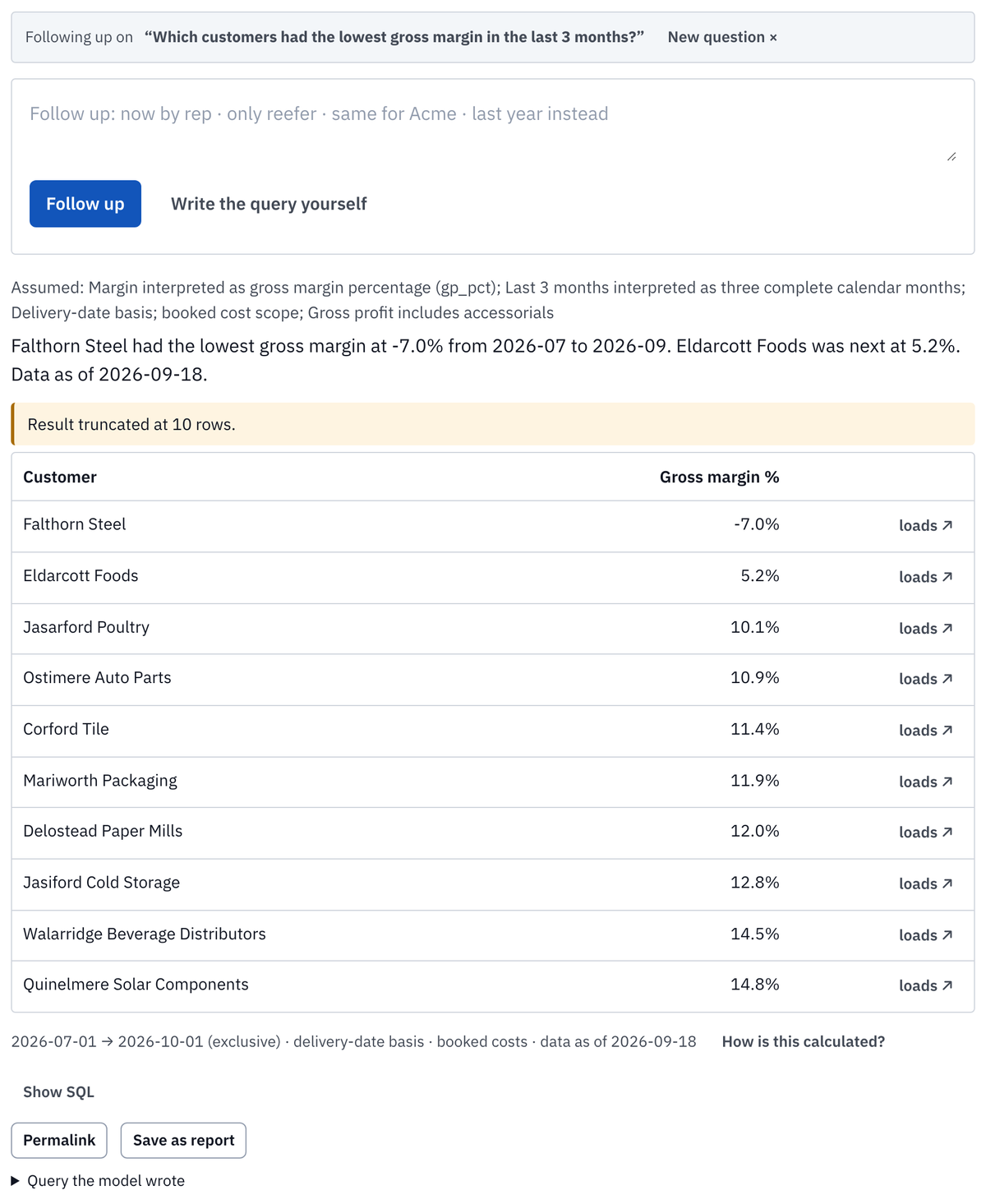
Questions that come up in the first week of an Ascend account, all answerable from the money file:
- Which customers had the lowest gross margin in the last 3 months?
- Where did we pay detention to carriers and not bill it back?
- Gross profit by sales rep this quarter versus last.
- Which lanes are priced below carrier cost per mile?
- Who pays slowest, and how has it moved since spring?
“Follow up” keeps the context (now by rep, only reefer, same for Acme, last year instead). How is this calculated? opens the definitions; Save as report turns the answer into a block you can schedule or share.
Step 8: schedule the Monday email
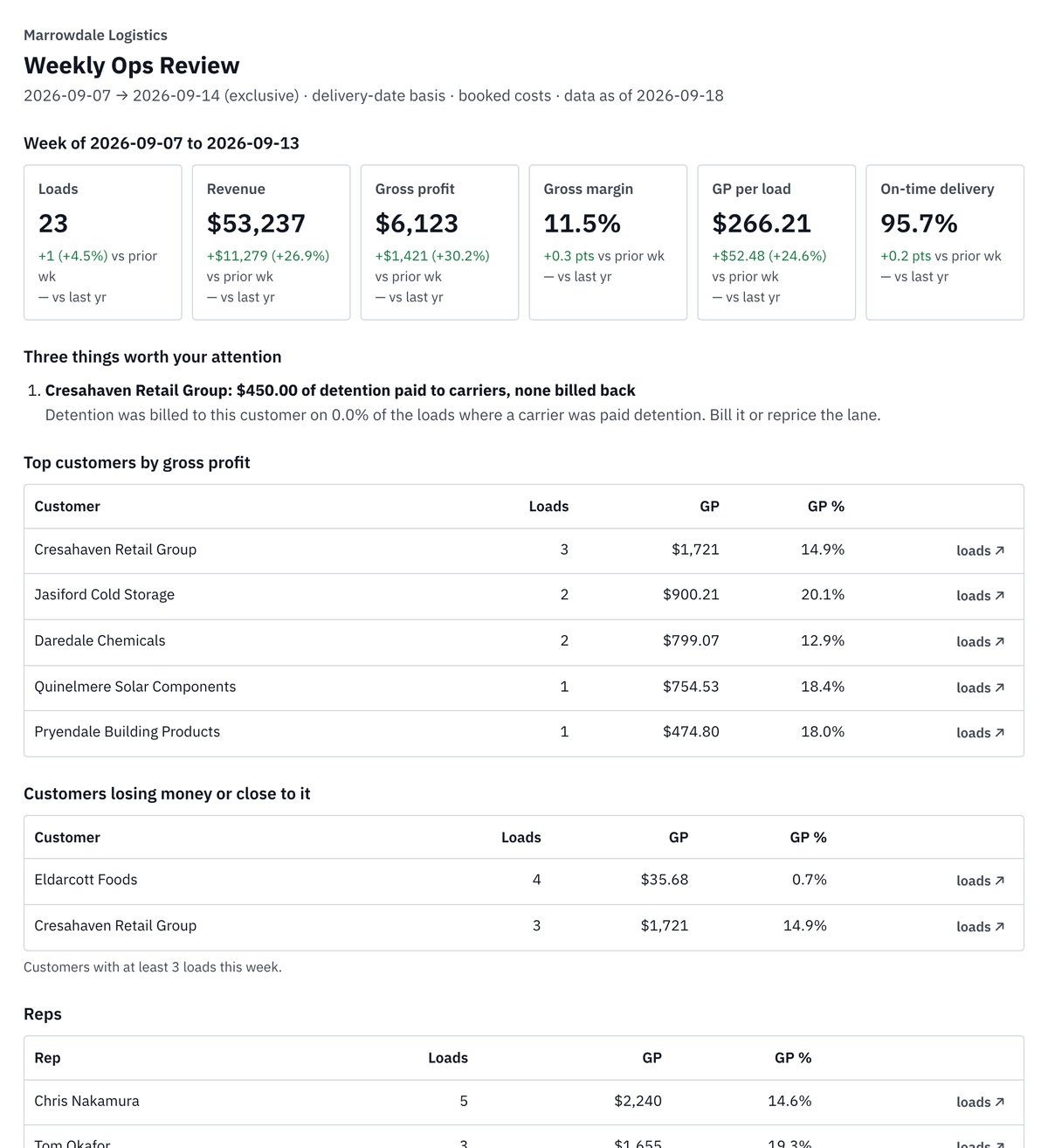
Open Reports. The Templates tab shows the Weekly Ops Review built from your data: the week’s loads, revenue, gross profit and margin against the prior week, three things worth attention, top customers, customers losing money, reps, and the data date in the footer. Email it now sends it to any address; recipients do not need an account.
To make it arrive on its own, go to Schedules › New schedule: pick the report, the recipients (the owner), the person to notify when the export has not arrived (whoever does the export), every week on Monday at 7 in your timezone.
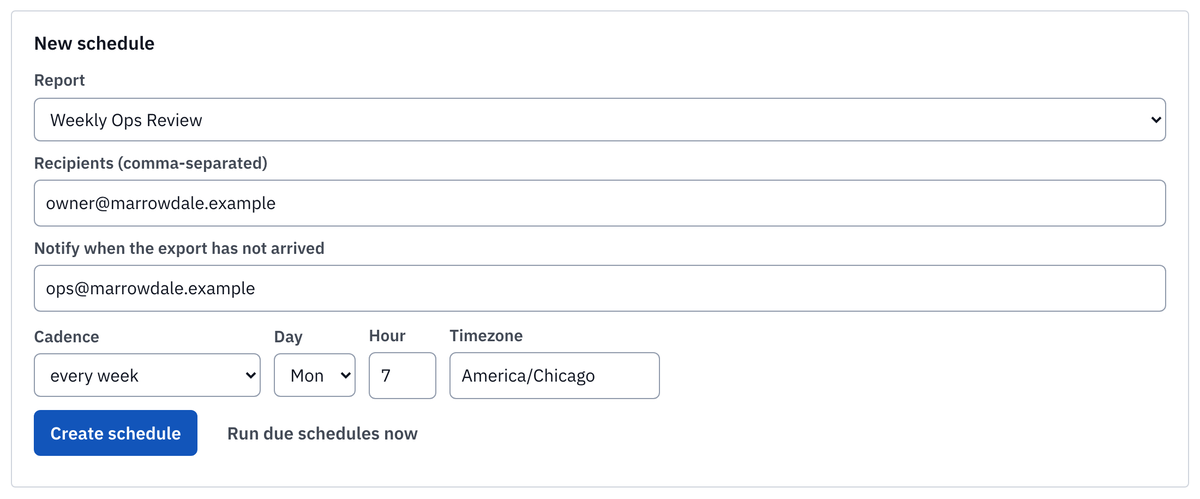
The rule behind the schedule is the whole point of it: a schedule sends only when an export taken after the period ended has been ingested. If Monday comes and last week’s export is not in, the owner does not get a stale report; the person under “notify” gets a reminder instead, once per stage, and the report goes out as soon as the upload lands.

Step 9: share it
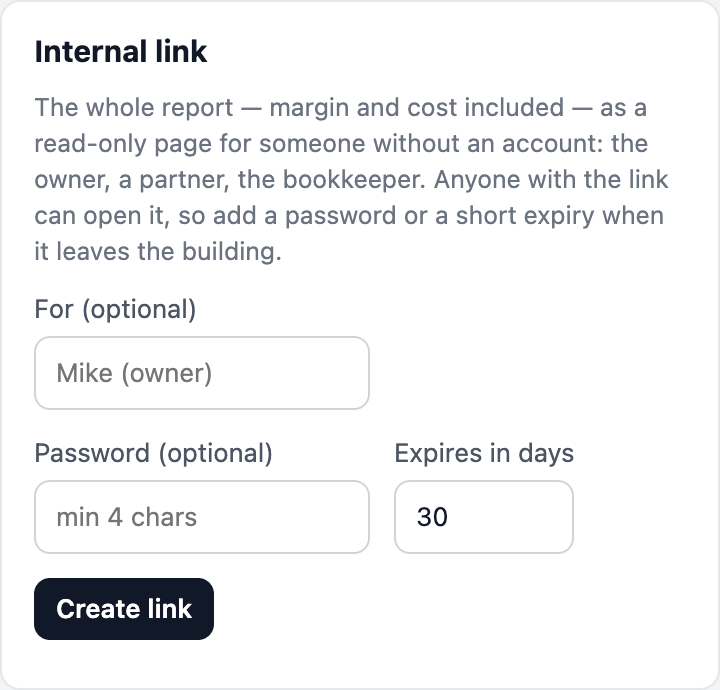
A saved report has two kinds of link. The internal link opens the report for a colleague without an account, footer and definitions included. Share with the customer locks the report to one customer first and then produces a customer-safe page: their loads, their on-time figures, their detention, never your margin. That is the QBR page.
Every week after that
- In Ascend, open the Saved Report, move the Date Range forward (or leave it wide; re-exported loads are restated, not duplicated), keep Live + Archived + Cancelled and the Extended layout, Export Report.
- Upload it at Data › Upload an export. The mapping is remembered, so it is choose file, check the date, Import.
- If you use the times file, export and upload it too.
Each upload is a snapshot. When a carrier bill lands three weeks after delivery and last month’s margin moves, the change is logged by load and explained at the top of the next report, not silently overwritten. When the export is late, the reminder goes out and the report waits.
When something looks wrong
| What you see | Cause | Fix |
|---|---|---|
| Invoiced loads missing, load count drops | Archived Loads not ticked | Tick it under Loads to Include and re-export the same range |
| Sales rep 0% | Display All Roles not ticked, or no one holds the Sales rep role on the loads | Tick it; assign the role on the load (Load Actions › Assign/Manage Load Roles) |
| Detention and accessorial views empty | Standard layout instead of Extended | Re-export with Extended - Charge Types in Columns |
| Delivery actual time 0%, on-time “not answerable” | No times file | Step 2: Customized Column Layout with the two Actual Arrival columns |
| Invoice dates far below 100% | Invoices raised outside Ascend | Connect QuickBooks Online in Settings; the books become the source for invoice and payment dates |
| Wrong file imported | Roll back on its row in the Imports table | |
| A week’s report did not arrive | The export for that week was not uploaded | The person under “notify” was told; upload, and it sends |
The Data page keeps a running copy of the first four rows as chips and a sentence, so a change in the export shows up the Monday it happens rather than in a quarterly review.